
Introduction: From Chaotic Code to Controlled Collaboration
You know that sinking feeling when you see files like code_final.js, code_final_v2.js, and code_final_really_final.js? Yeah, we've all been there. One wrong save, one lost laptop, one teammate editing the same file, and boom... hours of work can vanish.
That mess is exactly why version control systems matter so much in software engineering. A Version Control System, or VCS, tracks changes to files over time so you can go back to older versions when you need them (Git book: About Version Control). Plain and simple.
In modern software engineering, source control isn't some nice extra. It's how teams work together without stepping on each other. It helps with code collaboration, branching strategies, and the whole software development lifecycle. Git is the big name here, and as of the 2024 Stack Overflow Developer Survey, about 93% of professional developers use it. That says a lot.
This guide will walk you from the first "what even is a VCS?" moment to using basic Git commands with confidence on your own projects. And if your team is modernizing old systems or building something new, Buildera-style software engineering support can help you set up cleaner code management from day one.

What is a Version Control System and Why is it Essential?
Picture this. It’s 4:58 p.m., the release is at 5, and someone just saved over the only working copy of the app. Panic mode. Coffee spills. Slack goes silent.
That kind of mess is exactly what a Version Control System, or VCS, helps us avoid. A VCS is software that records changes to files over time, so you can go back to an older version whenever you need it (Git book: About Version Control). In plain words, it’s like a time machine for your code.
And that time machine does three big jobs.
Benefit | What it means in real life |
Full history | You can see who changed what, and when |
Safety net | You can undo a bad edit without starting over |
Teamwork | Many people can work on the same project without constant file chaos |
The first one is simple. You get a full record of your code management history. That helps a ton when you’re fixing bugs, checking old decisions, or trying to remember why a line of code exists in the first place. The second one is the part people love after they make a mistake. We all do it. Wrong delete, bad merge, weird bug. A VCS lets you roll back and breathe again.
The third benefit is the one that really matters in software engineering. Source control gives teams a shared way to work together, which is why Git, GitHub, and branching strategies are such a normal part of the software development lifecycle. Without it, collaboration turns messy fast. With it, people can work in parallel, review changes, and keep moving without tripping over each other.
That’s also why VCS is a non-negotiable skill in most professional software engineering jobs. It’s not just for GitHub hobby projects. It’s how real teams ship features, fix issues, and keep production stable. Git is the usual choice too. The 2024 Stack Overflow Developer Survey shows Git is used by about 93% of professional developers, which pretty much says the quiet part out loud.
So if you’re learning software engineering, or helping a team modernize old systems, VCS is one of the first habits worth building. It keeps your work safer. It keeps your team calmer. And yes, it saves you from naming files final_final2_reallyfinal.js.
Centralized vs. Distributed: The Two Architectures of Version Control
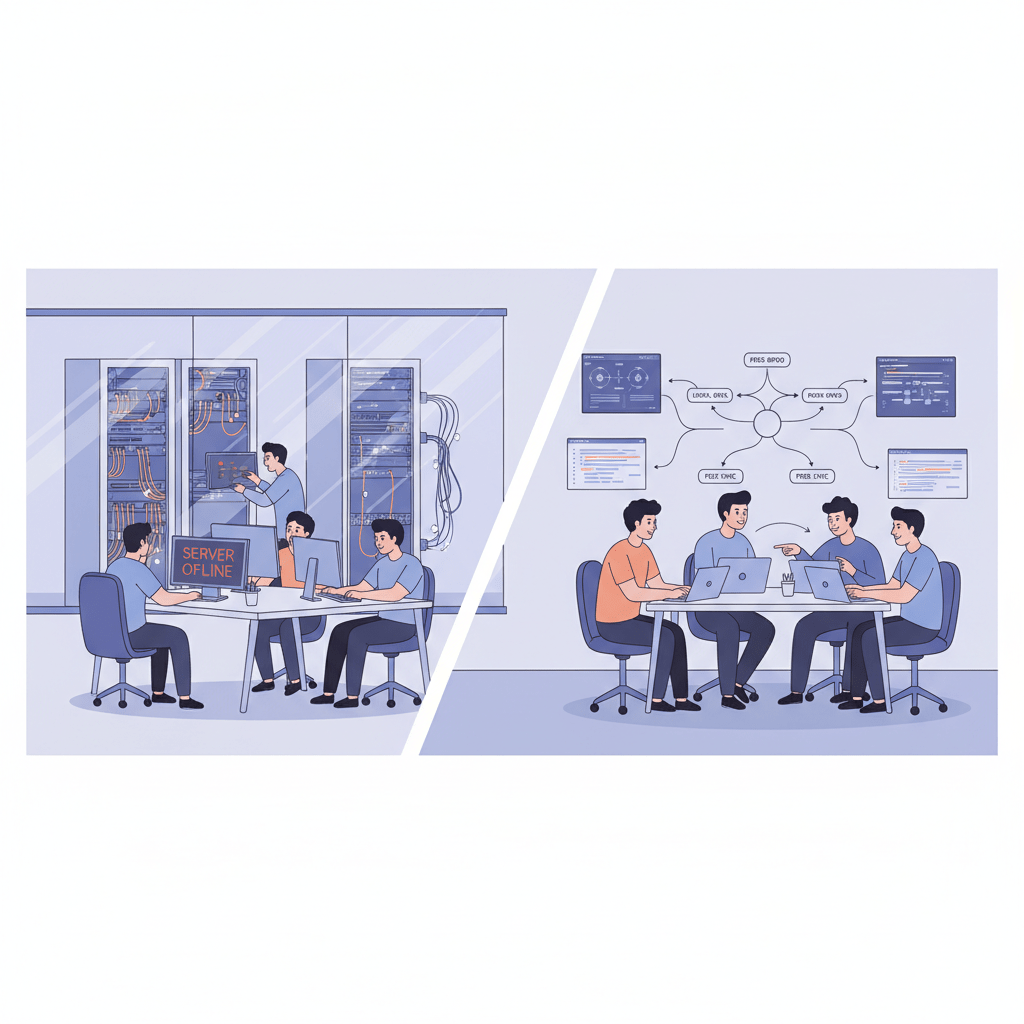
Picture a team of developers walking into one shared library. One person holds the only key. Want a file? You check it out, make your edits, then put it back. That’s the basic idea behind centralized version control systems, or CVCS.
Subversion, or SVN, is the best-known example. In a CVCS setup, the code lives on one main server. Developers pull files from that central spot, work on them, and send changes back when they’re done. Simple. Easy to picture. But also a little fragile.
If that main server goes down, work slows or stops. And if the network drops, you’re stuck. That single point of failure is the big weakness here. Teams can still use CVCS well, especially in older enterprise setups or places that want tight control, but it can feel limiting once a team starts moving fast.
Now compare that with distributed version control systems, or DVCS. Git and Mercurial are the big names here. With DVCS, every developer has a full copy of the project history on their own machine. Not just the latest file. The whole thing.
That changes everything. You can commit changes offline, review history without asking a server for permission, and branch without worrying so much about breaking the central copy. It’s a lot like having your own full library at your desk instead of waiting in line at the front desk every time you need a book.
Here’s a quick side-by-side look:
Feature | Centralized VCS | Distributed VCS |
Main storage | One central server | Every developer has a full copy |
Offline work | Limited | Yes, you can keep working |
Risk if server fails | High | Lower |
Branching and merging | Usually slower | Fast and flexible |
Best fit | Older, tightly controlled teams | Most modern software engineering teams |
The tradeoff is pretty clear. CVCS can be easier to understand at first, but DVCS wins on speed, flexibility, and teamwork. That’s a big reason Git became the standard in modern software engineering. A recent Stack Overflow survey shows Git is used by about 93% of professional developers, which lines up with what most teams already feel in day-to-day work.
So if you’re choosing a system for new code management work, Git is usually the safer bet. It supports better code collaboration, smoother branching strategies, and a healthier software development lifecycle. And if your team is stuck on older tools, Buildera can help with the move to modern source control without making the whole process feel like a fire drill.
Deep Dive into Git: Understanding the Core Concepts
Git didn’t start as some fancy team tool. Linus Torvalds built it in 2005 for Linux kernel work, after the old system got in the way of fast, messy, real-world coding. That origin story matters. Git was made for speed, trust, and lots of people working at once.
And honestly, that’s why it stuck. Git is now the most used VCS on the planet, with the 2024 Stack Overflow Developer Survey showing about 93% of professional developers use it. That’s a pretty loud vote of confidence.
So what do all the Git words actually mean?
Git term | Simple meaning | Easy analogy |
Repository | The project folder that holds your code history | A labeled box of all your project stuff |
Commit | A saved snapshot of your work | A photo of your code at one moment |
Branch | A separate line of work | A side road off the main highway |
Merge | Combining two lines of work | Putting two puzzle pieces together |
A repository, or repo, is just the home for your project. It keeps the files and the history together. Think of it like the one folder where the whole team can find the latest code, old changes, and all the little notes in between.
A commit is a snapshot. Not a full movie. Just one freeze frame of your work at a point in time. When you make a commit, you’re saying, “This is a version I want to save.” And if you mess something up later, you can go back. Nice and simple.
Branches are where Git gets really handy for software engineering. A branch lets you work on one idea without touching the main line. Maybe you’re adding login screens. Maybe your teammate is fixing a bug in checkout. You can both work at the same time without stepping on each other’s toes. That’s source control doing real work.
Then there’s merge. That’s the part where separate branches come back together. Sometimes it’s smooth. Sometimes Git asks you to help untangle two people changing the same line. Weird, right? But it’s still better than guessing which file is the real one.
Now for the part beginners usually skip, then regret later: the staging area. Git calls it the index, but most people just think of it as a waiting room. You don’t have to commit every change you made. You choose what goes in next.
That’s a big deal.
Here’s a simple way to picture it:
Your working folder is the kitchen counter
The staging area is the plate you’re preparing
The commit is the meal you serve
So if you changed 10 files but only want 3 in the next commit, you stage those 3. The rest can wait. This is one of Git’s best features, because it gives you control instead of forcing you to dump everything in at once. It also helps keep commit messages cleaner and your Git workflow easier to read later.
If you’re new to Git, start small. Make a repo. Create a branch. Try a commit. Then stage just one file and see how it feels. That hands-on bit is where the learning clicks.
And if your team is modernizing older tools or setting up better code management from scratch, Buildera can help shape a Git workflow that fits your software development lifecycle without turning the whole thing into chaos.
Your First Project: A Step-by-Step Git Workflow
Ever made a tiny change, then stared at your screen and thought, “Wait... what did I just break?” Yep. That’s the exact moment Git starts feeling like a superpower instead of a buzzword.
Let’s walk through a solo Git workflow the simple way. No team drama yet. Just you, your code, and a clean path forward.
1) Start a repository
First, open your terminal in the project folder and run:
git init
Expected output:
Initialized empty Git repository in /your/project/folder/.git/
That one command turns your folder into a Git repository. Now Git can start tracking changes.
2) Check what Git sees
Next, ask Git what’s going on:
git status
Expected output might look like this:
On branch main

No commits yet

Untracked files:
  (use "git add <file>..." to include in what will be committed)
	index.html
	style.css
This is your quick health check. It tells you what changed, what’s new, and what still needs attention.
3) Add files to the staging area
Now pick the files you want in the next save point:
git add index.html style.css
Or, if you want all changed files:
git add .
Expected output is usually quiet. That’s normal. Git doesn’t need to brag here.
Think of staging like a shopping cart. You’re choosing what goes into the next commit. Not everything in the store. Just what you meant to buy.
4) Make your first commit
Time to save a snapshot:
git commit -m "Add first project files"
Expected output:
[main (root-commit) a1b2c3d] Add first project files
 2 files changed, 48 insertions(+)
 create mode 100644 index.html
 create mode 100644 style.css
That long string, like a1b2c3d, is the commit hash. It’s Git’s ID tag for that exact snapshot. You can use it later to inspect, compare, or roll back if needed.
5) Look at your history
Want to see every save you’ve made?
git log
Expected output:
commit a1b2c3d9f8e7b6c5d4e3f2a1b0c9d8e7f6a5b4c3
Author: Your Name <you@example.com>
Date:   Tue Aug 19 14:30:00 2026 -0400

    Add first project files
Each commit in the log tells a little story. What changed. When it changed. And who changed it.
If you want a shorter view, try:
git log --oneline
That gives you a neat list like this:
a1b2c3d Add first project files
Nice and clean.
So if you’re just getting started with software engineering, this tiny workflow is a great first win. Initialize. Check status. Add files. Commit. Then check the history. That’s the basic Git workflow you’ll use again and again, whether you’re learning solo or getting ready for team-based code collaboration.
And if your team is dealing with messy old systems, Buildera can help shape a better source control setup that fits your software development lifecycle without turning it into a headache.
Collaborative Software Engineering with Remote Repositories
Ever had a teammate say, “I pushed the update,” and you had no clue where to look? That little moment can turn into a full-on mess fast. Especially in software engineering, where five people can touch the same feature before lunch.
That’s where remote repositories come in. GitHub, GitLab, and Bitbucket act like shared hubs for source control. Your local repo stays on your machine, but the remote repo is the shared place where the team meets, swaps changes, and keeps the code moving. Think of it like the group chat for code management. Messy sometimes, sure. But way better than emailing zip files around.
The basic remote workflow is simple:
Action | What it does |
| Copies a remote repository to your computer |
| Brings in the latest changes from the remote |
| Sends your commits up to the remote |
First, you clone a repo. That gives you your own copy to work in.
git clone https://github.com/example/project.git
After that, you work on your branch, make commits, and push your changes back up when you’re ready.
git push origin feature-login
But here’s the part people forget: before you push, you usually pull. That way you grab the latest updates and avoid that awkward “rejected push” moment nobody enjoys.
git pull origin main
Pull Requests, or Merge Requests in GitLab, are the part that really ties collaboration together. A PR is where one person says, “Hey, this feature is ready to look at.” Then teammates review the code, leave comments, suggest fixes, and decide if it should be merged into the main codebase. It’s not just paperwork. It’s how teams catch bugs early, share knowledge, and keep branching strategies from turning into spaghetti.
GitHub is often the go-to for open source and team collaboration. GitLab leans more toward all-in-one DevOps and built-in CI/CD. Bitbucket fits nicely with Jira and Confluence for teams already in that setup. Different tools, same goal: smoother software development lifecycle work and less chaos.
If you’re part of a team that’s modernizing older systems or building a new product, Buildera can help shape the Git workflow, branching strategies, and code collaboration setup so your software engineering process feels a lot less clunky. And if you’re just starting out, try making your first pull request in a small demo repo. That first review comment? It can feel like a rite of passage.

Beyond the Basics: Essential Practices for Clean Code Management
You know that moment when your repo starts feeling like a junk drawer? One minute it’s clean. The next, it’s full of log files, build folders, and somebody’s secret API key that should never have been there in the first place. Messy. Fast.
That’s where a .gitignore file earns its keep. It tells Git what not to track, so your repository stays clean and your code management stays sane. In Node.js, that usually means things like node_modules/, .env, dist/, and coverage/. In Python, it often includes __pycache__/, venv/, and .pytest_cache/. The goal is simple: keep generated files, dependencies, and sensitive stuff out of source control GitHub’s gitignore templates.
And yes, merge conflicts happen. A lot. Actually, that’s normal in software engineering. If two people edit the same lines, Git may stop and say, “Hey, I need help here.” A conflict can look like this:
<<<<<<< HEAD
<button>Save</button>
=======
<button>Submit</button>
>>>>>>> feature-form-update
Not pretty. But not a disaster either. We just choose the right line, save the file, and keep moving.
This is also why a branching strategy matters. GitHub Flow works well for small and medium teams that ship often. GitFlow can help teams with planned releases and hotfixes. Either way, having a clear plan keeps code collaboration smoother and stops everyone from working in the same lane at once. And if your team is modernizing old systems, Buildera can help shape a Git workflow that fits your software development lifecycle without turning every release into a scramble.
Conclusion: Make Version Control Your Greatest Ally
I’ve seen teams ship faster just because they stopped treating code like a pile of loose files. That’s the real win here. A Version Control System, and Git in particular, gives you safety, history, and a way to work together without constant chaos. The Git SCM guide says it plainly: a VCS records changes over time so you can recall older versions later (Git SCM: About Version Control).
And that’s not just for big companies. It’s a core skill for anyone moving from student or hobbyist work into real software engineering. If you know how to make commits, use branches, and work with source control, you already look a lot more like a professional developer.
So what should you do next?
Create a GitHub account if you don’t have one yet
Start a small personal project and keep every change under version control
Join a beginner-friendly open-source repo, like
first-contributions, and try a real pull request
Tiny steps. Big payoff.
Plus, if your team is modernizing old systems or trying to clean up messy code management, Buildera can help set up a Git workflow that fits your software development lifecycle without turning it into a headache. Start small, keep practicing, and let version control do the heavy lifting.
Ready to build software that actually works for your business?
Free discovery call · 15 minutes · No obligation